



Corruption in PST file is one of the reasons for the Outlook won’t open issue. To fix corruption issues in PST file, Microsoft provides an Inbox Repair tool, also called ScanPST, which comes installed by default with Outlook. When this utility finished repairing the corrupt PST file, it shows the Errors Fixed message.
Sometimes, even if the ScanPST reports “Error Fixed”, Outlook still not open. This happens because this tool is only suitable for fixing minor errors and inconsistencies in Outlook data file (.PST). It cannot repair severely corrupted or large PST file. This indicates the file is not fully repaired or there might be other reasons.
In this article, we will discuss the most common reasons for Outlook won’t open issue and the ways to resolve it.
Why Outlook Fails to Open even after ScanPST Reports “Errors Fixed”?
Even after repairing the PST file using ScanPST Outlook won’t open, then there might be other reasons, such as:
- Corrupt or damaged Outlook profile
- Issues with the Outlook installation
- Conflicts with third-party add-ins
- Antivirus or firewall interference
- Outlook.exe is invisibly running in the background
- Insufficient file permissions
How to Resolve ScanPST shows “Error Fixed” but Outlook won’t Open?
Now that you know the causes of the Outlook not opening issue. Let’s see how to fix the issue.
1. Check if Outlook is Running in the Background
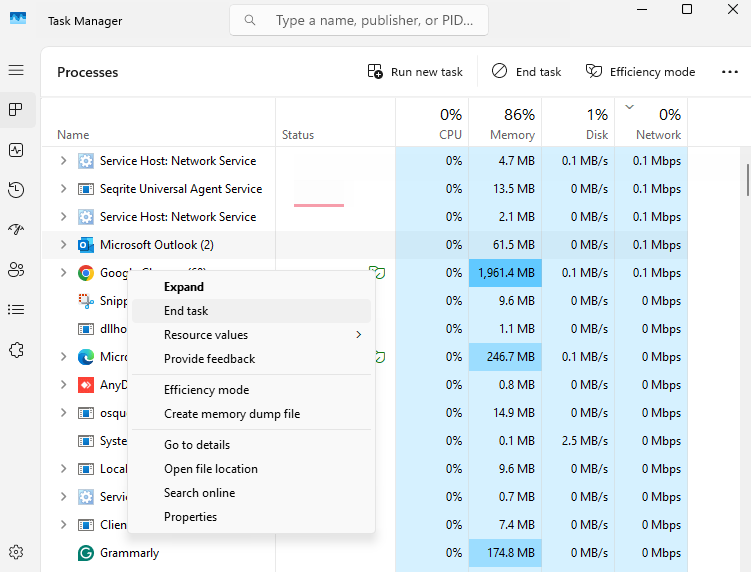
First of all, make sure that no Outlook processes are running in the background. When any Outlook-related process is already running in the background, it conflicts with the application and prevents it from opening. Follow these steps to completely close the application:
- Press Ctrl + Shift + Esc to open Task Manager.
- Find Microsoft Outlook under processes.
- If you find any Outlook-related process. Right-click on it and click End Task.
- Try opening Outlook again.
2. Check PST File Permissions
When you don’t have appropriate permissions to access, read, or modify the PST file, it can cause Outlook opening issue. You need to make sure that you have sufficient permissions to open the PST file. Follow the instructions below:
- Locate the PST file. Usually, it is located at: C:\Users\<Your Username>\Documents\Outlook Files.
- Right click on the PST file.
- Click on Properties.
- Verify that Read Only is not checked.
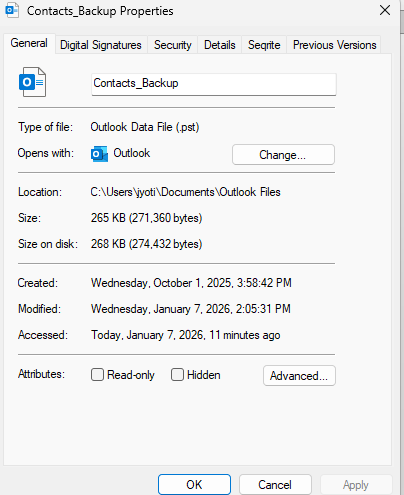
- If Read-Only attribute is checked, then uncheck it and click OK.
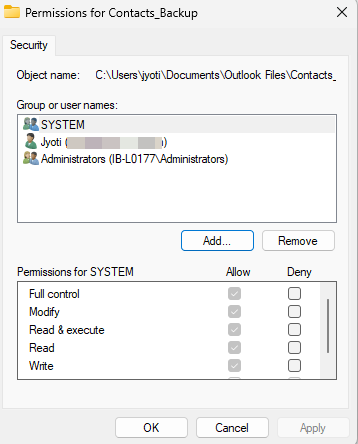
- Now, go to Security tab.
- Click on Edit.
- From Permissions for Outlook Data File, select the checkbox for Full control and click OK.
3. Start Outlook in Safe Mode and Remove Add-ins
At times, third-party add-ins can interfere with Outlook’s functionality, if they are faulty. You can check this by opening Outlook in Safe Mode (Press Windows + R keys and type Outlook.exe /safe). If Outlook opens in Safe Mode, it means the issue is caused by faulty add-ins. Follow these steps to identify and remove them:
- Go to File.
- Click on the Options tab and choose Add-ins.
- Select COM Add-ins and click on Go.
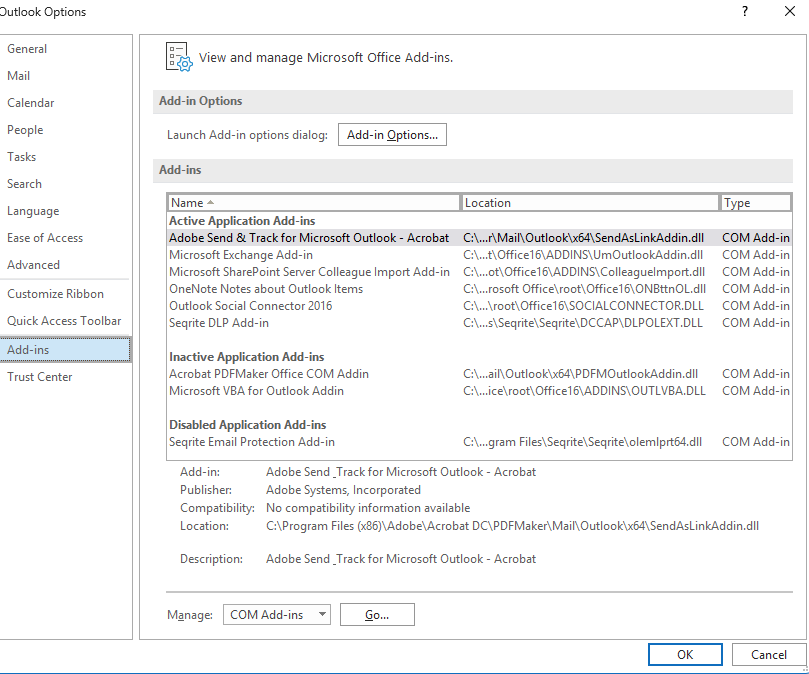
- Now a window will open where you will see a list of add-ins.
- Uncheck all the Add-ins.
- Click on OK.
Now enable one add-in at a time and restart Outlook to find the problematic add-in. Once you find that add-in, remove it permanently.
4. Temporarily Disable Antivirus
Incompatible or outdated antivirus application can interfere with Outlook process, resulting in the Outlook not opening issue. To check this, you can temporarily disable your antivirus program. To do this, follow the steps given below:
For Windows Defender:
- Click on Start.
- Type Windows Security.
- Launch the application.
- Go to Virus & threat protection > Manage settings.
- Turn off Real-time protection.
For third-party antivirus program:
- Open your antivirus program.
- Go to its Settings.
- Search for the Disable protection temporarily or Exclude Outlook from scanning option.
- Then, enable it.
5. Repair Outlook Installation
You may encounter Outlook won’t issue if your Outlook/MS Office program files are damaged or corrupt. You can resolve it by repairing the Outlook/MS Office installation. Below is a quick way to do this:
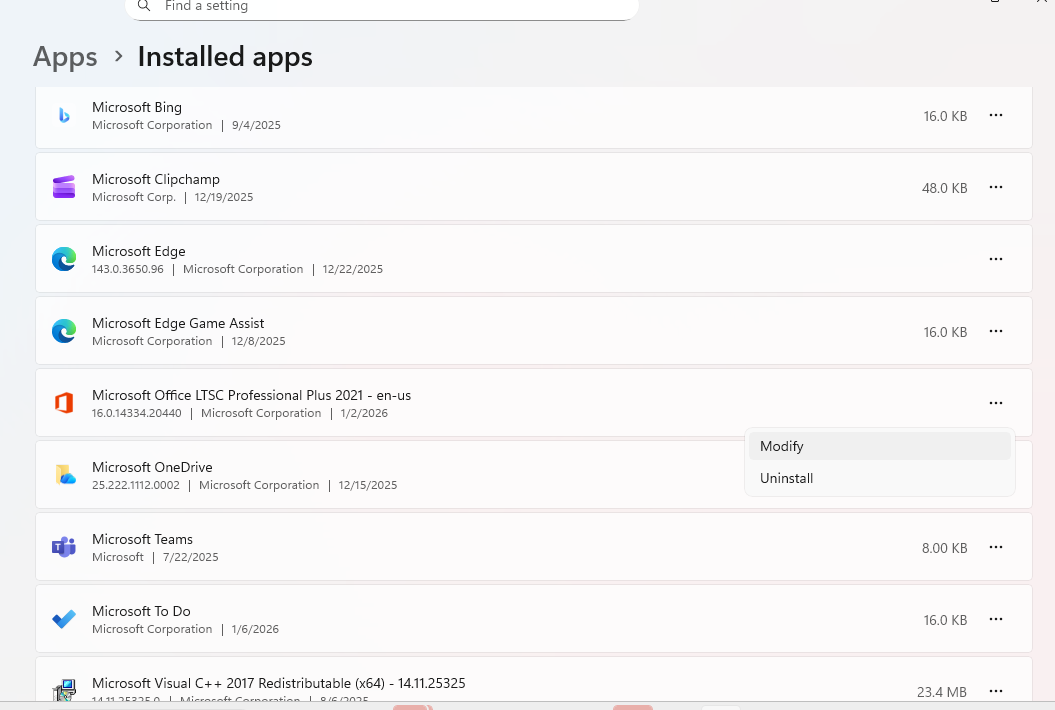
- Go to Settings.
- Click on Apps > Installed Apps.
- Locate Microsoft Office or Office 365.
- Click on the three dots and select Modify.
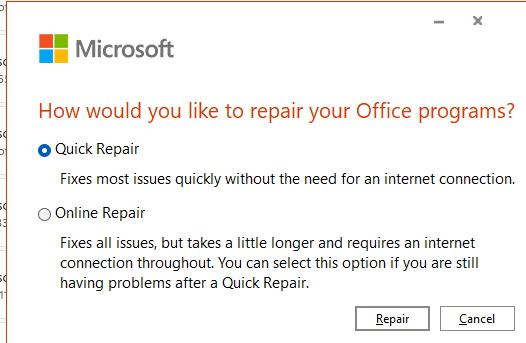
- Choose Quick Repair.
- Now, click on Repair.
- After repairing, try to open the Outlook.
6. Create a New Outlook Profile
If your Outlook profile is set up incorrectly or corrupted, then your Outlook may fail open. You can resolve this issue by creating a new Outlook profile. Here’s how to create a new user profile in Outlook:
- Open Control Panel.
- Click on Programs and go to User Account > Mail (Microsoft Outlook).
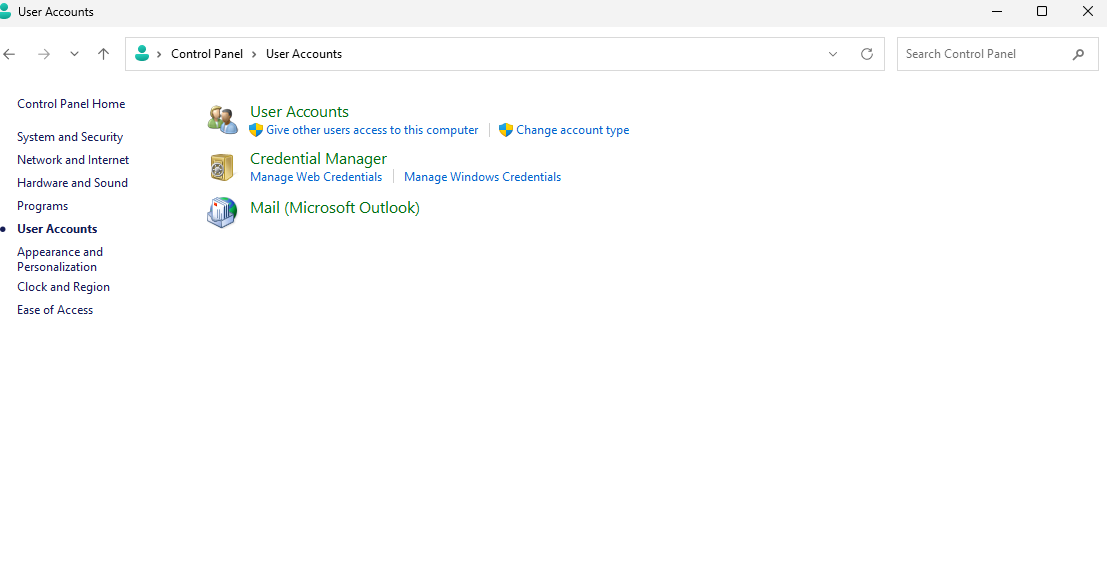
- Select Show Profiles.
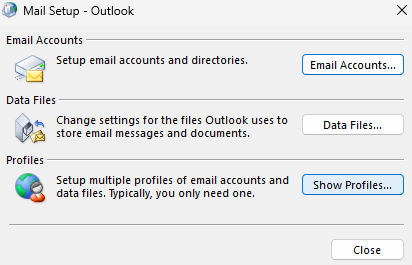
- To add new profile, click on the Add button.
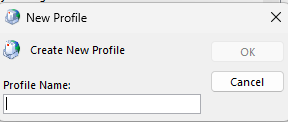
- Enter the profile name.
- Click on OK.
- Now confirm your email address and click on Next > Finish.
- Make sure to select the “Always use this profile” option to set the new profile as the default.
- Now click OK.
- Launch Outlook to check if it is working.
7. Use a Professional PST Repair Tool
If ScanPST shows “Errors Fixed” after repairing your PST file but Outlook still won’t open, it may be due to severe corruption in PST file. Though ScanPST is effective for minor inconsistencies and errors but it has some limitations such as:
- Repairs only minor PST corruption.
- Fails to repair large or oversized PST files.
- Requires multiple repair attempts.
Because of these limitations relying solely on ScanPST may not resolve the problem. You can use a reliable PST repair tool like Stellar Repair for Outlook to repair your corrupted or damaged PST file. It is designed to handle severe PST corruption that ScanPST cannot fix. After repairing your PST, you can preview all your mailbox items. This tool can deeply scan your damaged PST file and recover all your mailbox items and restore them to a new PST file.
Conclusion
When ScanPST shows the “Errors Fixed” message but Outlook still won’t open, the PST file may be severely corrupted. In this case, you can use a specialized PST repair tool like Stellar Repair for Outlook. This tool can effectively repair your PST file irrespective of the file size and level of corruption. It saves the repaired PST data in a new fresh PST file, which you can import into your Outlook. This helps you to resolve the Outlook won’t opening issue if it is due to PST file corruption.