



Google Takeout lets you export a copy of your Gmail data as an MBOX file. The trouble starts when you try to open that file in Outlook, because Outlook has no native support for MBOX. There is no import option for it in the Import/Export wizard, so the file just sits on your drive.
The right fix depends on who you are. If you are one person moving your own Gmail account, a free manual method or a quick conversion is usually enough. If you are an IT admin moving a whole Google Workspace company to Microsoft 365 or Exchange, or you have inherited a stack of MBOX files from employees who left years ago, you need a more structured approach.
This guide covers all three situations. It starts with the methods for individual users, then explains where Google Workspace migrations get difficult and how to handle them, and finishes with a practical way to move old MBOX archives into Outlook.
Which Method Should You Use?
| Your situation | Best-fit method | Why |
| One Gmail account, a few folders | Method 1 (EML via Thunderbird) or Method 2 (online converter) | No software purchase needed for small mailboxes |
| One or more large MBOX files, folder structure matters | Method 3 (Stellar Converter for MBOX) | Keeps the folder hierarchy and gives you a preview before saving |
| Many Google Workspace mailboxes to Microsoft 365 or Exchange | Workspace migration approach below | Batch conversion and direct export into Outlook profiles |
| Old MBOX files from former employees | Legacy archive approach below | One PST per person, easy to hand over or archive |
Methods for Individual Users
Method 1: Save Gmail MBOX Emails as EML Files and Import Them into Outlook
This manual method saves the emails from your Google Takeout MBOX file as EML files and then moves them into Outlook. You need an email client that can read MBOX files, such as Mozilla Thunderbird. Eudora also reads MBOX, but it was discontinued years ago, so Thunderbird is the safer choice today. Here is what to do:
Step 1: Install Thunderbird and the ImportExportTools NG add-on
- Download and install Mozilla Thunderbird on your Windows PC.
- Launch Thunderbird and configure an email account in it.
- Click Settings > Add-ons and Themes.
- Search for ImportExportTools NG and install it.
- Restart Thunderbird.
Step 2: Import the Gmail MBOX file into Thunderbird
- Create a new folder under Local Folders.
- Right-click the new folder and go to ImportExportTools NG > Import mbox Files > Individual mbox Files.
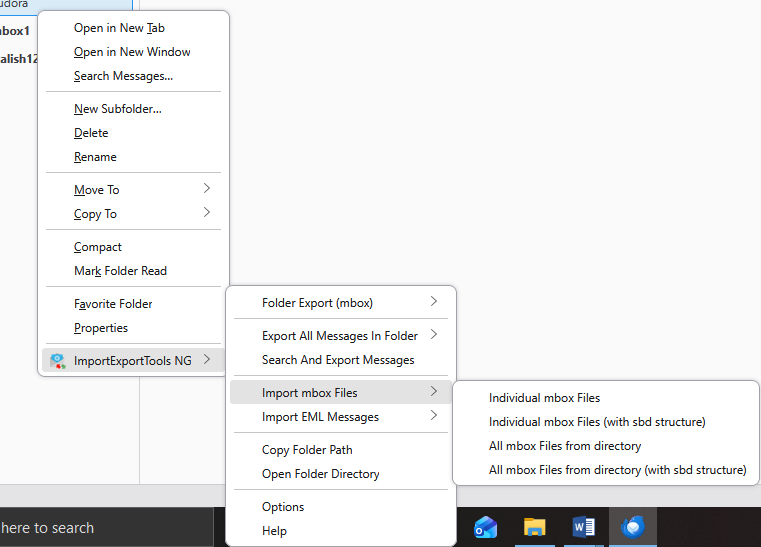
- Select the Gmail MBOX file and click Open.
- The messages stored in the MBOX file now appear in Thunderbird.
Step 3: Save the emails as EML files
- Create a new folder on your computer to hold the EML files.
- In Thunderbird, click the folder that contains the Gmail emails. The messages appear in the right pane.
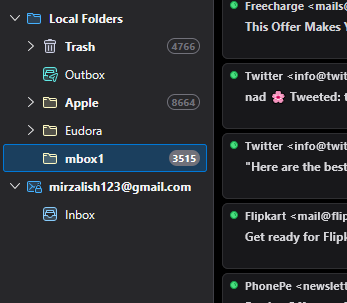
- Press Ctrl + A to select all the emails in the folder. To pick individual messages, hold Ctrl or Shift while you click.
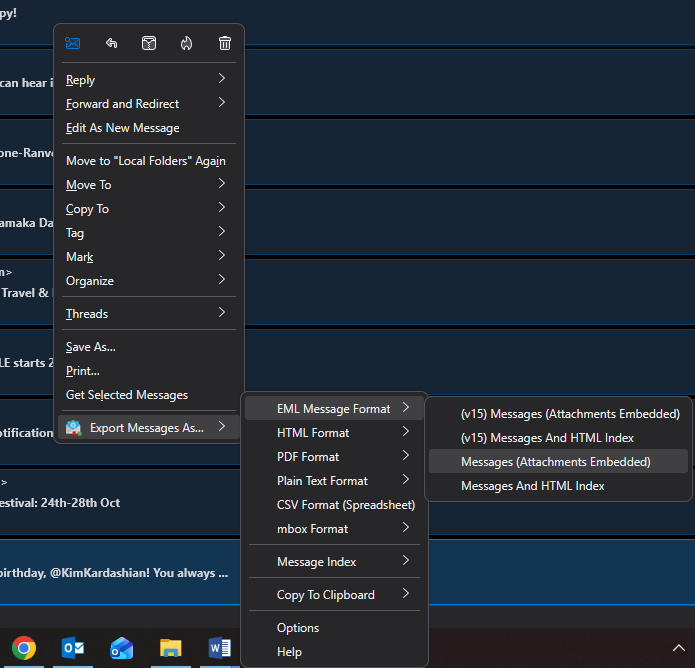
- Right-click the selection and choose Export Messages As > EML Message Format.
- Choose the Messages (Attachments Embedded) option.
- Select the folder you created and click Select Folder. The messages are saved there as EML files.
Step 4: Drag and drop the EML files into Outlook
- Open classic Outlook on your Windows PC. Drag and drop works reliably in classic Outlook, not in the new Outlook app.
- Click Folder in the menu bar, choose New Folder, give it a name and click OK.
- Open the folder that holds the EML files, select them, and drag them into the new folder in Outlook.
Limitations of this method
- You can only export one Thunderbird folder at a time. If the mailbox has many sub-folders, you must repeat Steps 3 and 4 for each one.
- The original folder hierarchy is lost, because every message becomes an individual EML file.
- With thousands of EML files, it is easy to miss messages while moving them, and the process is slow.
Method 2: Convert Gmail MBOX to PST with an Online Converter
If you want to keep the mailbox folder structure without installing anything, you can convert the file to PST with the free MBOX to PST converter from Stellar. It is a web-based service. This free plan converts a single MBOX file under 100 MB, and the Premium plan converts up to five MBOX files of up to 5 GB each (check the page for current pricing).
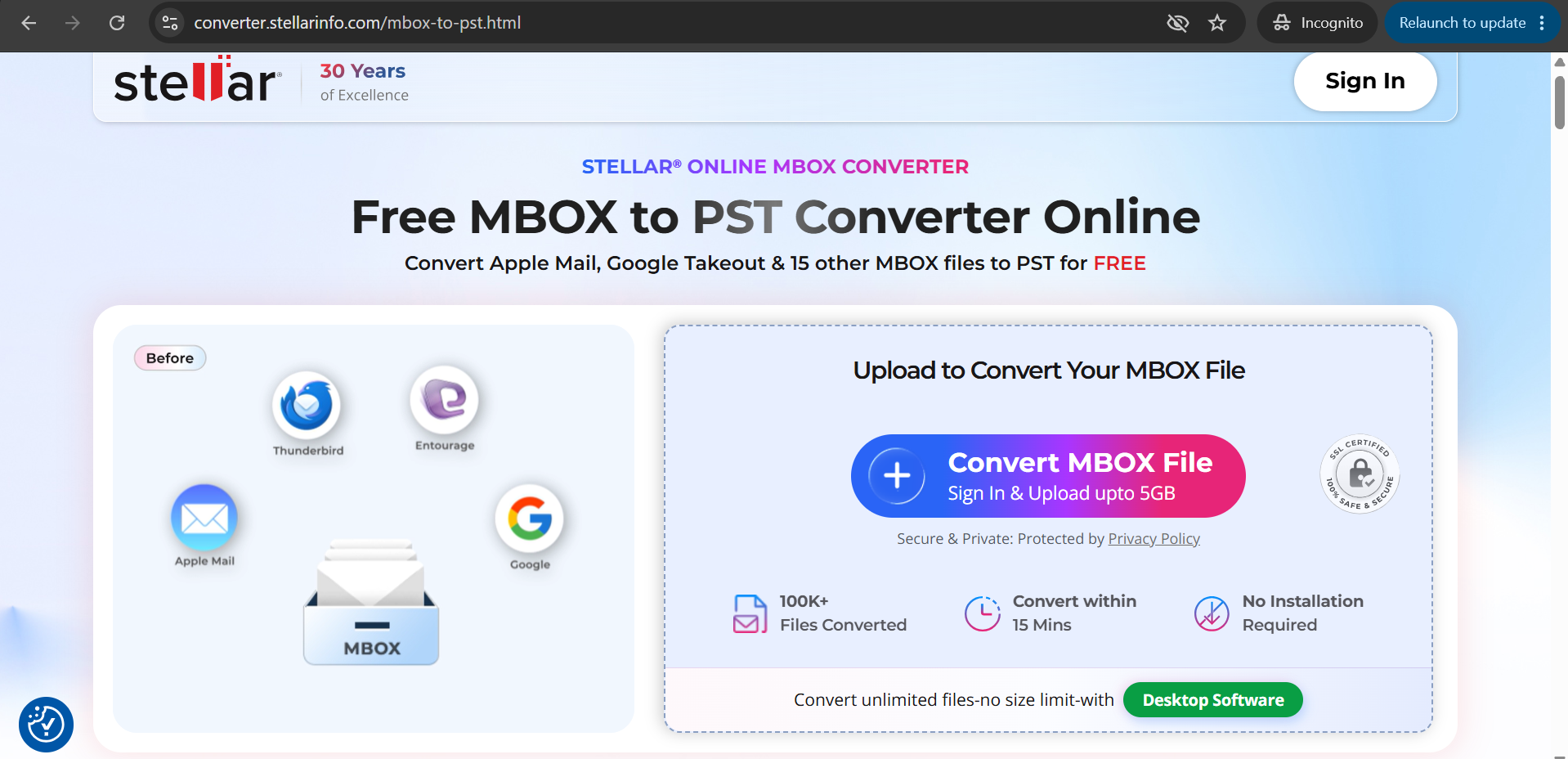
What it offers:
- A three-step flow: Upload, Convert, Download.
- No dependency on Microsoft Outlook for the conversion itself.
- A preview of the converted data before you download.
- Support for MBOX files from Google Takeout, Thunderbird, Apple Mail, Eudora and several other email clients.
- Files are removed automatically after the download window (24 hours on the free plan, 48 hours on Premium).
Because the file is uploaded to a web service, check your organisation’s data policy first if the mailbox contains confidential business email.
Method 3: Migrate Gmail Mailbox to Outlook with Stellar Converter for MBOX
Stellar Converter for MBOX is Windows software that works on your own computer, so your data does not leave your system. It converts MBOX files into PST and keeps the mailbox structure intact. It can also save the mailbox items as MSG and EML, and as RTF, HTML and PDF in the Technician edition.
The basic flow looks like this:
1. Install and launch the software on a Windows PC that has classic Outlook installed. Outlook is needed to save the converted data as a PST.
2. Select the MBOX file, or the folder that holds your MBOX files. If you do not know where the files are, use the Find option to search a drive.
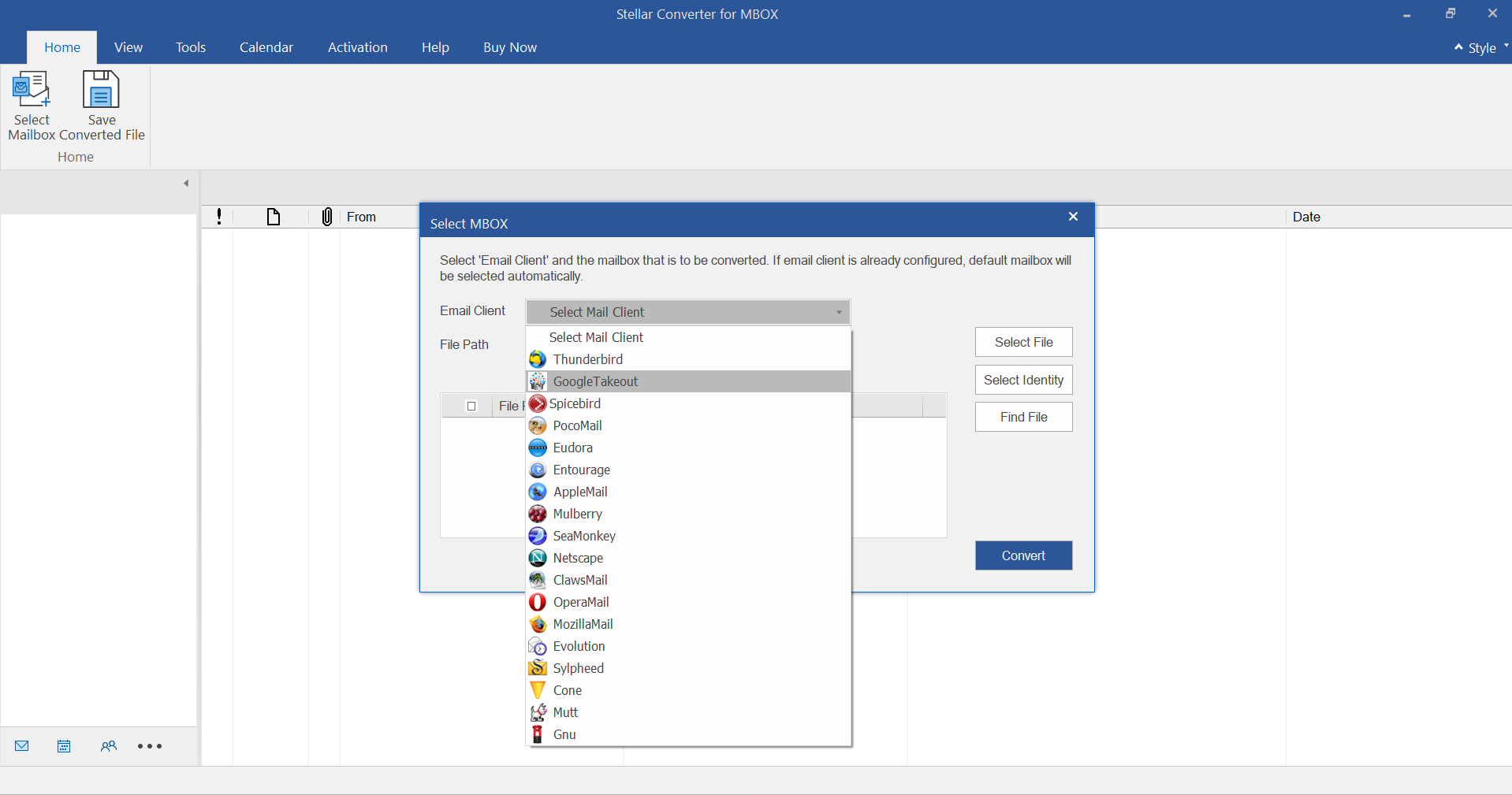
3. Let the software scan the file, then preview the folders, emails, contacts and other items before you save anything.
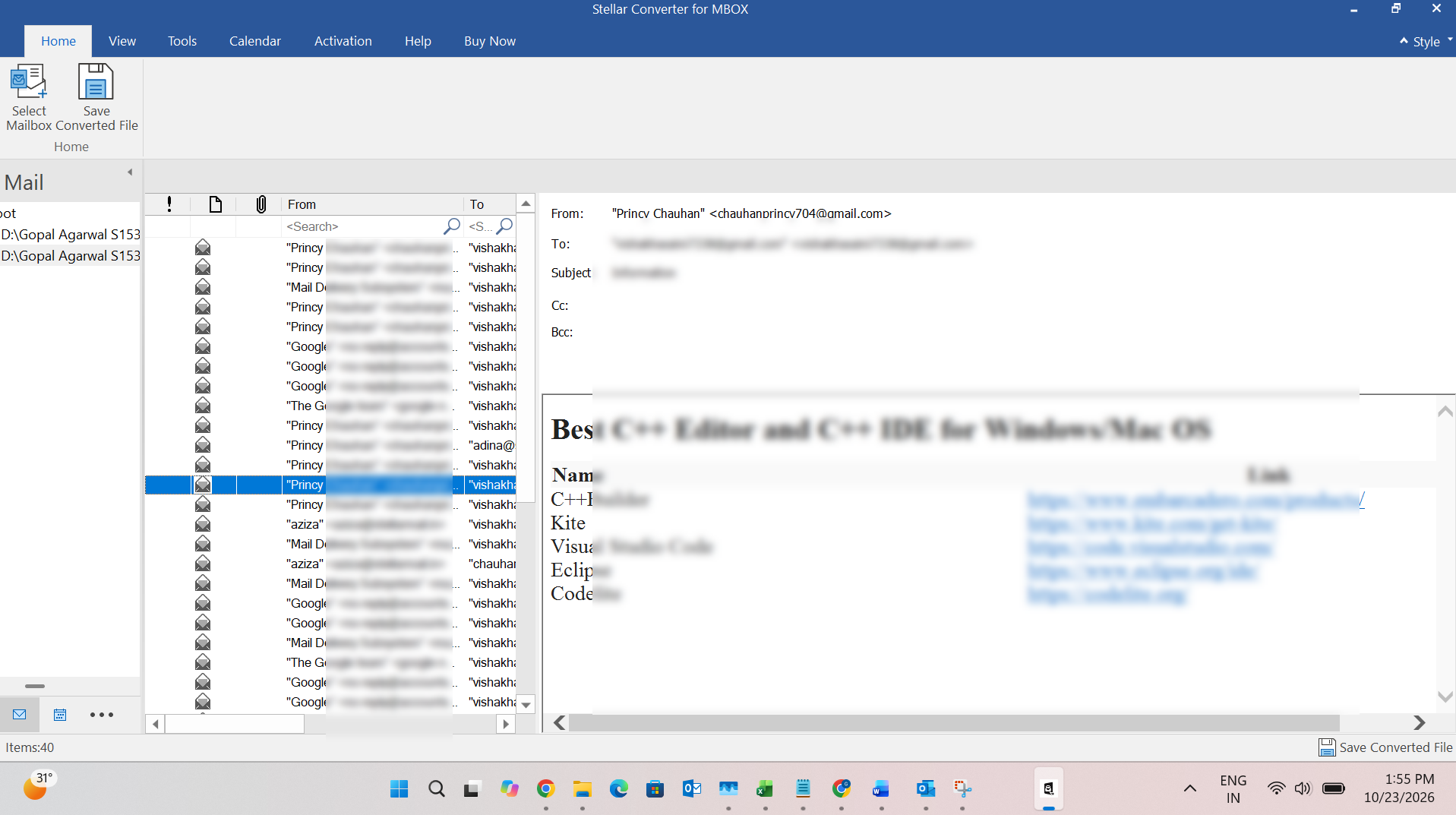
4. Choose the output format. Select PST for Outlook, or save to an existing PST or directly into an Outlook profile if your edition supports it.
5. Pick a destination, finish the save, and then check the result in Outlook.
Key features:
- Supports MBOX, MBX, MBS and RGE files from Google Takeout (Gmail), Apple Mail, Thunderbird, Entourage and many other email clients.
- Maintains the folder structure and hierarchy during conversion.
- Preview of mailbox items before saving or exporting.
- Find option to locate MBOX files on your system.
- Date-range filter, and an option to exclude emails by email ID.
- Batch conversion of several MBOX files from a folder.
- Saves to PST, MSG and EML, with RTF, HTML and PDF in the Technician edition.
- Exports directly into an Outlook profile, including a Microsoft 365 profile, in the Technician edition.
Once you have the PST, open Outlook and use File > Open & Export > Import/Export to import the PST file into Outlook.
Moving a Complete Google Workspace Mailbox Environment to Outlook
The three methods above work well when one person moves one mailbox. A company moving from Google Workspace to Microsoft 365 or Exchange faces a different problem: dozens or hundreds of mailboxes, a deadline, and users who expect to find their email in Outlook on day one.
Where Google Workspace Makes This Hard
Google Workspace was built to keep your data in Google’s ecosystem, and its export tools reflect that. When an organisation tries to move to Outlook, these gaps show up quickly:
| Challenge | What happens in practice | What it means for the migration |
| MBOX is the only mail export format | Google Takeout hands you MBOX files, and Outlook cannot open them | Every mailbox needs a conversion step before Outlook can use it |
| Takeout works account by account | Each mailbox is exported on its own, with no mapping of users to destination mailboxes | Admins have to track which file belongs to which user |
| Gmail uses labels, Outlook uses folders | A message with several labels can appear in more than one exported file | Expect duplicates and a restructured folder tree unless the conversion handles it |
| Large mailboxes export slowly | Big accounts can be split across several archives and take hours or days to prepare and download | Plan the export window well before the cut-over date |
| Only mail is in the MBOX | Calendars and contacts are separate Takeout exports | Those items need their own handling |
| Little visibility on the export | Takeout gives you no detailed log of what was exported and no integrity check | You need to verify item counts after conversion |
| Deleted accounts cannot be exported | Once a user account is removed, its mailbox is gone from Takeout | Export before you delete or suspend accounts |
These are the gaps that push organisations towards MBOX conversion rather than a one-click migration.
A Note on Microsoft’s Own Migration Option
For accounts that are still active, Microsoft provides a Google Workspace migration in the Exchange admin center, which moves mail directly from Gmail to Exchange Online. It is worth evaluating first. MBOX conversion is the better route when the Google accounts are already suspended or deleted, when all you have are Takeout or archive exports, when you want a PST copy of every mailbox for archiving, or when you want control over each mailbox one at a time.
How Stellar Converter for MBOX Helps with Workspace Migrations
Stellar Converter for MBOX is not only for individual users. Its batch conversion and export options suit the way an admin works:
- Batch conversion. Point the software at a folder that holds many MBOX files and it converts them together, so you are not repeating the same steps for every user.
- Direct export to Outlook profiles. The Technician edition can save converted mailbox items directly into an Outlook profile, including a Microsoft 365 profile. If the profile is connected to an Exchange mailbox, the items land in that mailbox and sync to the server.
- PST output for everything else. Where a direct export is not needed, you can save a PST per user, which is easy to import later or keep as an archive copy.
- Preview before saving. Admins can check the content of a mailbox before it goes into a user’s account.
- Folder structure preserved. The hierarchy in the MBOX is carried over into Outlook.
- Large PSTs split automatically. The Auto Split option divides oversized PSTs into smaller files.
- Works on your own systems. Nothing is uploaded, which matters when the mailboxes hold client or financial correspondence.
A Practical Workflow for Admins
- Prepare the destination. Create the mailboxes and licences in Microsoft 365 or Exchange for every user who is moving.
- Export before you switch off accounts. Collect a Takeout export for each Google account while it is still active. In Takeout, select All mail so unlabelled messages are not skipped.
- Organise the files. Keep one folder per user, named after the user, inside one parent folder. A clear naming convention saves hours later.
- Convert in batches. Run Stellar Converter for MBOX on a 64-bit Windows machine with classic Outlook installed and load the parent folder.
- Preview and spot-check. Open a few mailboxes in the preview, search for known messages and check the folder structure.
- Export. Save to each user’s Outlook profile (Technician edition) or to a PST, then open or import the PST in Outlook.
- Verify and hand over. Compare item counts with the source where you can, check a sample of attachments, and confirm with the user before you delete the original export.
Handle calendars and contacts separately, because they are not part of the MBOX mail export.
Moving Old MBOX Files from Former Employees to Outlook
Many organisations are left with MBOX files from people who have moved on: old Thunderbird profiles on retired laptops, Apple Mail archives, or Takeout exports saved before an account was closed. Outlook cannot open any of them, yet legal, finance or the successor in the role often needs to search them.
- Collect and catalogue. Gather the files in one place and record the employee, the source email client and the date range. Thunderbird stores mail in extension-less files alongside .msf index files, so you may need the Find option to locate them.
- Check retention and legal requirements. Before converting or moving anything, confirm whether the mail is covered by a retention policy or legal hold. Keep the original MBOX files untouched until the process is signed off.
- Convert one PST per employee. Use batch conversion, with the MBOX files from each person in their own folder, so each ex-employee ends up with a single PST. This makes it easy to find and manage the archive later.
- Choose where the mail should live. You have three sensible options. Open the PST in Outlook as an archive for the people who need it. Export the content into a shared or archive mailbox using the Technician edition. Or merge the relevant folders into the successor’s mailbox if they need the history.
- Store the PSTs safely. Keep archive PSTs on access-controlled storage, not on individual desktops. A Unicode PST has a default size limit of 50 GB, so keep each archive well below that.
- Test before you retire the source files. Search the archive in Outlook for a few known messages and attachments.
MBOX files from clients such as Eudora or Entourage, or older MBX and RGE files, are covered by the same process because the software reads those formats too.
After the Import: Quick Checks
- Compare folder names and item counts with what you saw in the preview.
- Search for several messages you know should be there and open their attachments.
- Check for duplicates, especially if the Gmail account used many labels.
- Keep the original MBOX file and backups until the user confirms everything is in place.
Frequently Asked Questions
Can Outlook open an MBOX file directly?
No. Outlook does not support MBOX. You need to convert the file to PST or EML first.
Will the Gmail folder structure stay intact?
A converter keeps the folder structure that exists in the MBOX files. Gmail labels reach the MBOX as folder-like groupings, so check the result in the preview. The EML method does not keep the hierarchy at all.
Do I need Outlook installed to convert MBOX files?
The online converter does not need Outlook. Stellar Converter for MBOX needs Outlook installed when you save the data as a PST or export it into an Outlook profile.
Can I migrate my whole Google Workspace with this software?
You can migrate every mailbox you have exported as MBOX, using batch conversion and export to Outlook profiles. Calendars and contacts are handled separately. For active accounts, compare it with Microsoft’s own Google Workspace migration before you decide.
Can I move mail from former employees without their accounts?
Yes, as long as you still have their MBOX files. Convert each person’s files to a separate PST and open or import it in Outlook.
Which Stellar edition do I need?
The Corporate edition handles standard conversion to PST, MSG and EML. The Technician edition adds saving to an existing PST or into an Outlook profile, Microsoft 365 export, and RTF, PDF and HTML output. Check the product page for current prices and features.
Conclusion
Outlook cannot import Gmail MBOX files directly, but there are good ways round it. For a single mailbox, the EML method or the online converter will do the job. When folder structure matters or the file is large, Stellar Converter for MBOX is the more dependable choice.
For businesses, the same software scales to a Google Workspace move or to a cupboard full of old employee archives: convert in batches, preview, export to PST or straight to Outlook profiles, and verify before you retire the source files. A little planning at the start saves a lot of cleaning up at the end.